
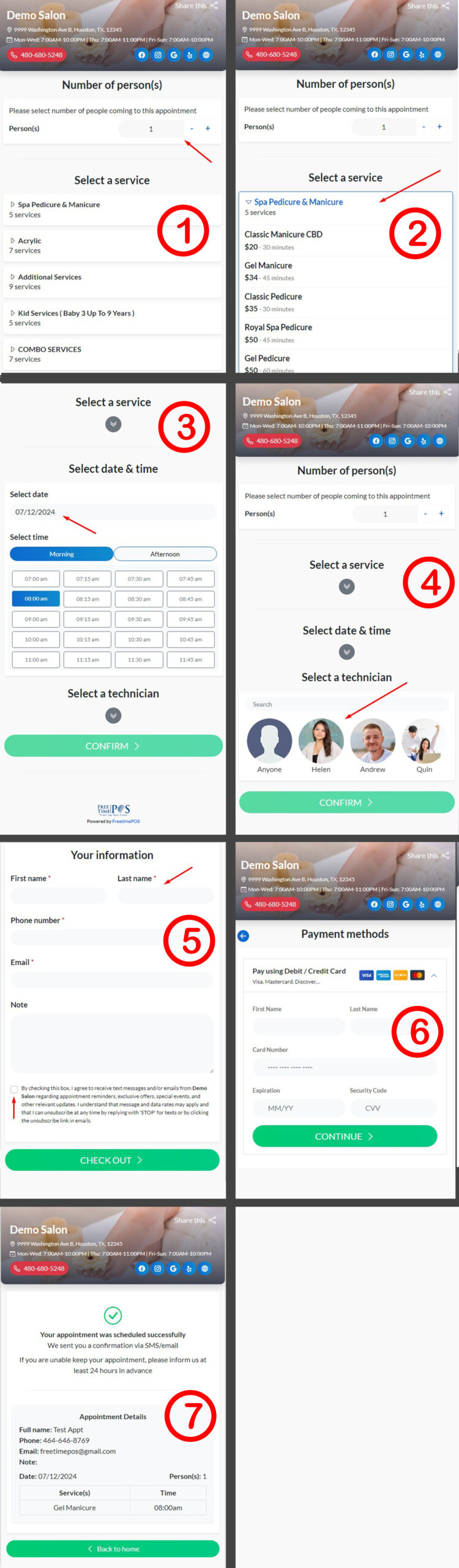
1. Book an Appointment – Pay with Credit Card (Clover, Authorized.net, Elavon, …)
- Select the number of people for the appointment. If you’re going in a group, increase the number of Persons.
- Choose the Category → select the Service.
- Pick the date and start time for the service.
- Choose the technician you want for the service or select Anyone.
- Enter your details and click Check out.
- Enter your credit card information and complete the payment process.
- After a successful payment, the booking details will be displayed. Click Back to Home to continue booking the next appointment.
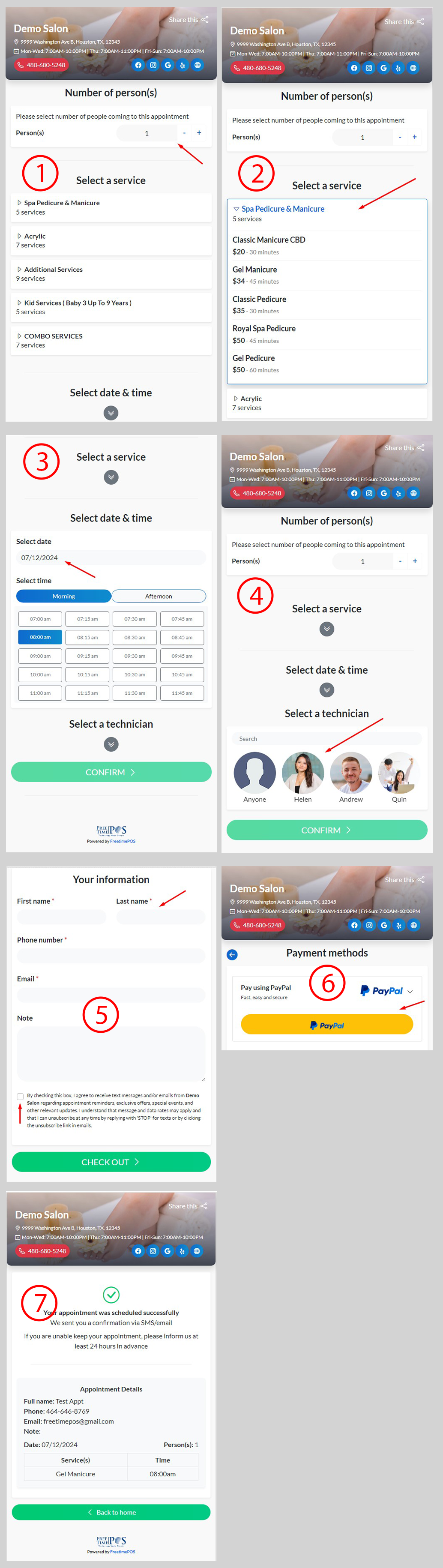
2. Book an Appointment – Pay with PayPal
- Select the number of people for the appointment. If you’re going in a group, increase the number of Persons.
- Choose the Category → select the Service.
- Pick the date and start time for the service.
- Choose the technician you want for the service or select Anyone.
- Enter your details and click Check out.
- Click the PayPal button to proceed to the PayPal payment page. Complete the payment process.
- After a successful payment, the booking details will be displayed. Click Back to Home to continue booking the next appointment.
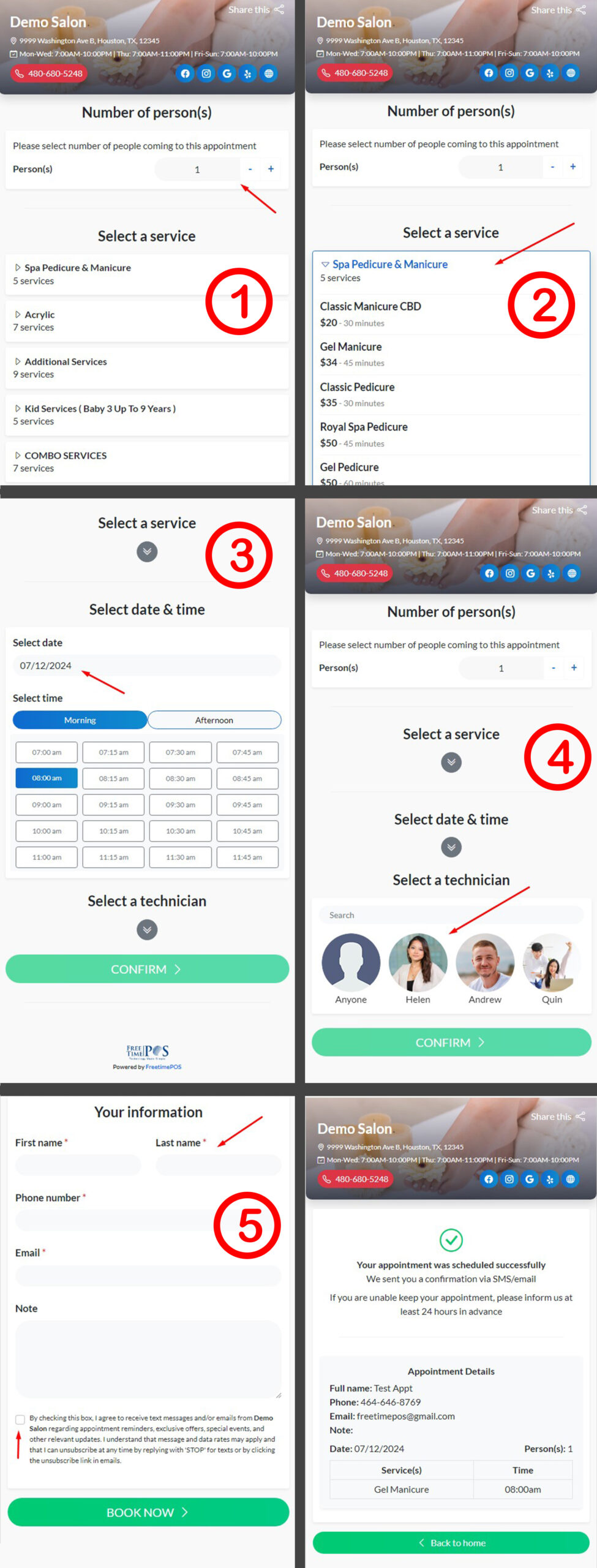
3. Book an Appointment – No Payment Required
- Select the number of people for the appointment. If you’re going in a group, increase the number of Persons.
- Choose the Category → select the Service.
- Pick the date and start time for the service.
- Choose the technician you want for the service or select Anyone.
- Enter the appointment details and click Book Now.